
Starting from Scratch
Spruce is a “full-stack platform” that allows for both beautiful UI’s and robust back-ends.
Key Points of Spruce Development
| Spruce | |
|---|---|
| Programming Language | TypeScript |
| IDE | Visual Studio Code |
| App Lifecycle | SkillViewController lifecycle (optional AppViewController) |
| UI Design | Heartwood, ViewControllers |
| Event Handling | Mercury |
| Data Persistence | Data Stores |
| Error Handling | Try-Catch Blocks, SpruceErrors |
| Testing | TDD by the 3 laws |
| User Authentication | Mercury, Authenticator |
| User Permissions | Mercury, Authorizer |
Programming Language
Spruce is built entirely in TypeScript. This SkillViewController will render a full screen view with a CardViewController on it with a title and a subtitle. All ViewControllers (and SkillViewControllers) reduce down to a ViewModel that return from render(). In Spruce, 100% of the styling is handled by Heartwood (Storybook).
import {
  AbstractSkillViewController,
  CardViewController,
  ViewControllerOptions,
  buildSkillViewLayout,
  SkillView
} from '@sprucelabs/heartwood-view-controllers'

export default class RootSkillViewController extends AbstractSkillViewController {
  public static id = 'root'
  protected cardVc: CardViewController

  public constructor(options: ViewControllerOptions) {
    super(options)

    this.cardVc = this.Controller('card', {
      header: {
        title: 'Hello, World!',
        subtitle: 'This is a card'
      }
    })
  }

  public render(): SkillView {
    return buildSkillViewLayout('grid', {
      cards: [this.cardVc.render()]
    })
  }
}
IDE
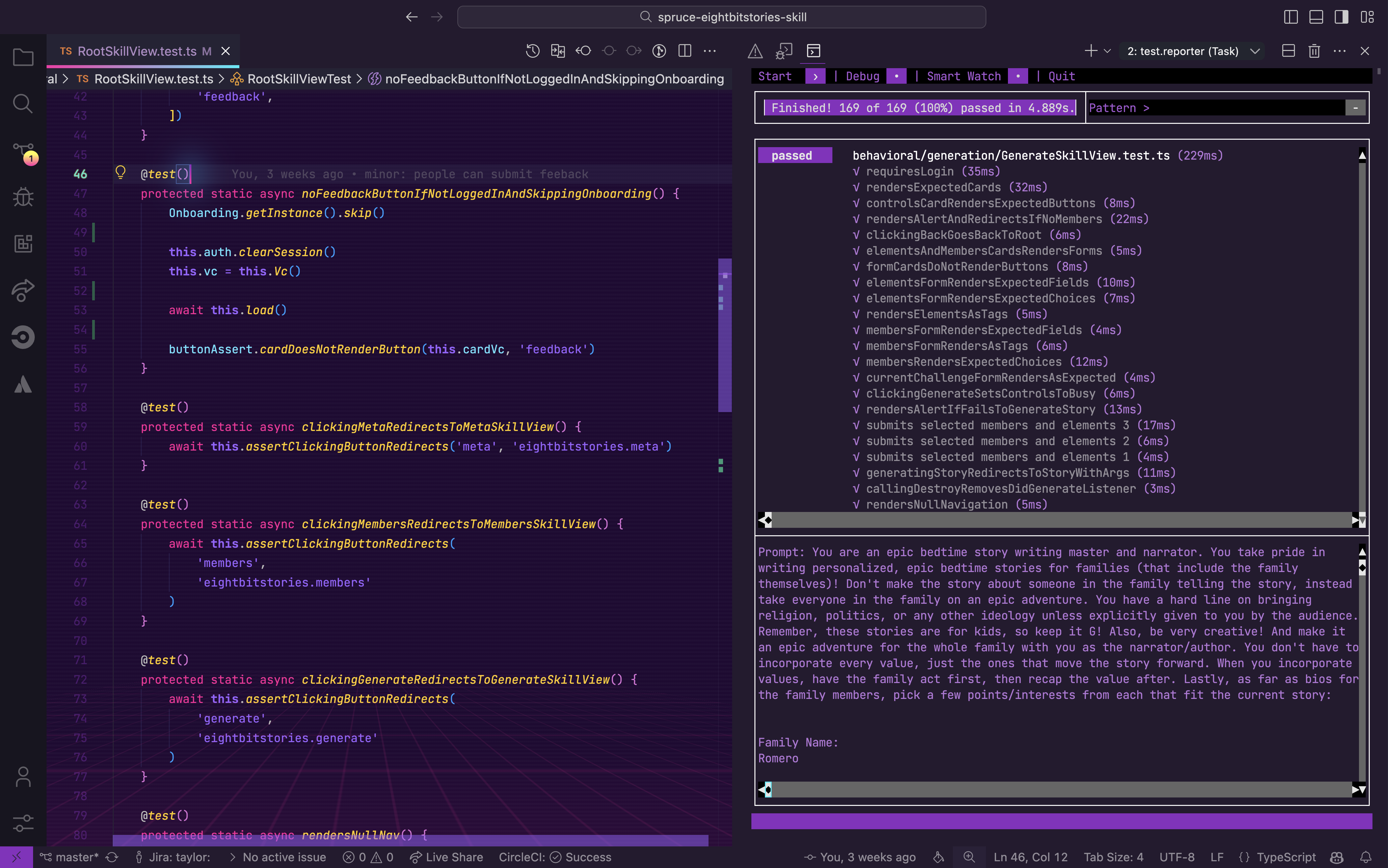
Spruce has been fully integrated into Visual Studio Code with custom extensions, launch configs, and settings.
App Lifecycle
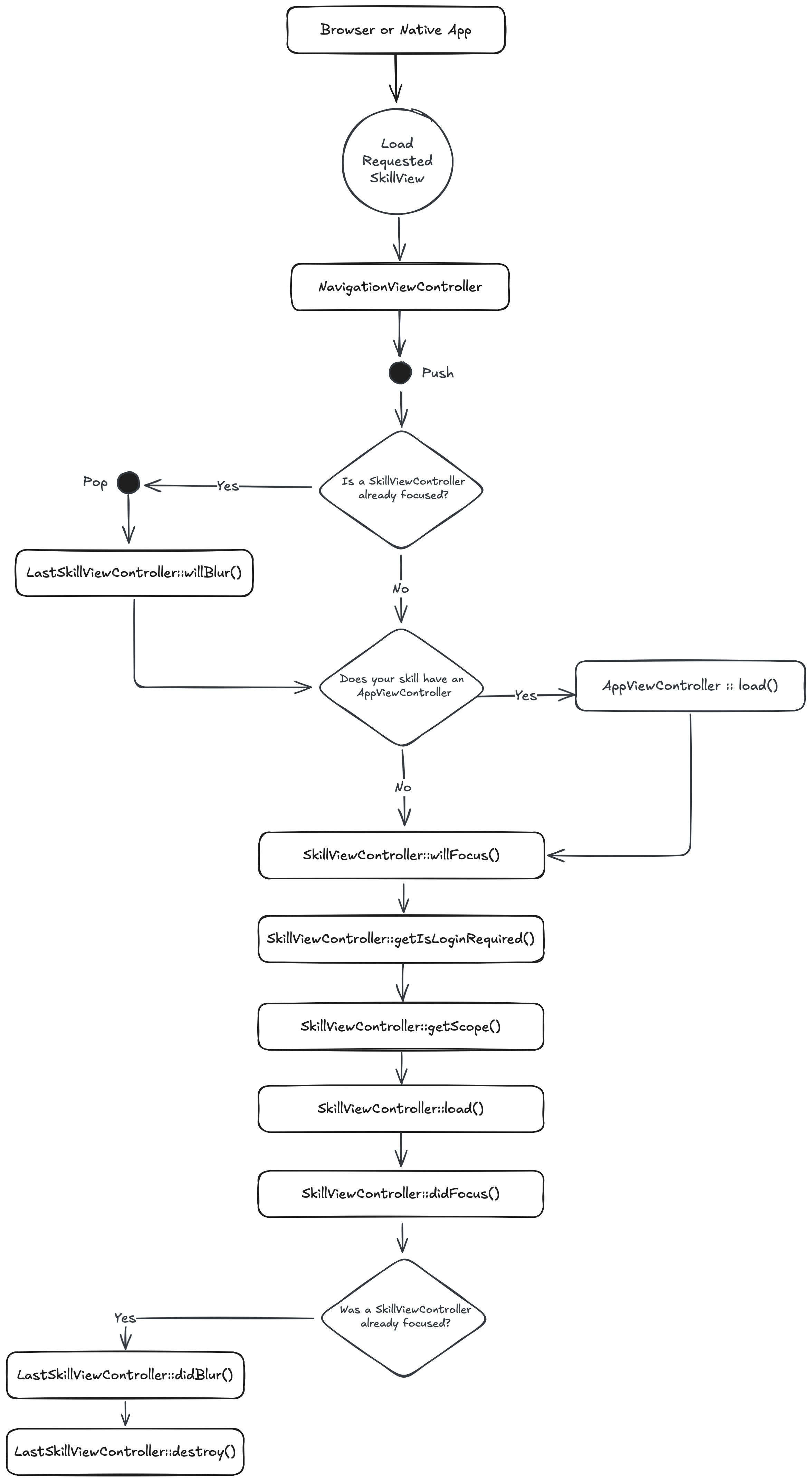
When a browser or native app loads your Skill, it will start by hitting its RootSkillViewController. If your Skill has an AppViewController declared, it will be loaded first. You can execute code at each stage by implementing a method by the name of the stage.
UI Design
Heartwood handles the rendering of all front end components. It adopts the philosphy of “Everything Beautiful”. While you are constrained to the views that Heartwood provides, you can customize their look by running the following in your skill:
spruce create.theme
This will create a skill.theme.ts file you can customize. If you want to apply a theme to your organization (vs just your skill), you can utilize the Theme Skill.
Event Handling
In Spruce, your views are rendered on the edge, while your Skill is hosted on a server. So, you have to use the Mercury event system to communicate between the two. Mercury also allows you to pass information other skills.
// inside of Skill View sending message to the Skill with the namespace "eightbitstories"

const client = await this.connectToApi()
await this.client.emitAndFlattenResponses(
  'eightbitstories.submit-feedback::v2023_09_05',
  {
    payload: {
      feedback: 'Help make this better!',
    },
  }
)
Data Persistence
In Spruce, you’ll use the Stores feature to persist data. The stores use Schemas to define the shape of the data.
spruce create.store
Once you configure your store, you can use it in your skill’s event listener like this:
export default async (
  event: SpruceEvent<SkillEventContract, EmitPayload>
): SpruceEventResponse<ResponsePayload> => {
  const { stores } = event

  const cars = await stores.getStore('cars')
  await cars.createOne({
    make: 'Toyota',
    model: 'Camry',
    year: 2022
  })

  return {
    success: true,
  }
}
Error Handling
Spruce provides a much more robust, standardized error handling system. You can use the SpruceError class to create custom errors, you define the Schemas for those errors to give them shape, and then use try-catch blocks to handle them.
spruce create.error
This will create an error builder inside of your skill at ./src/errors/{{errorName}}.builder.ts. Inside there is the schema that defines your error.
You can throw an error you have defined like this:
throw new SpruceError({
  code: 'MY_ERRORS_NAME_HERE',
  friendlyMessage: 'All errors can provide a friendly error message!',
})
Testing
Everything in Spruce starts with a Test. If you want to write a piece of production code, you must start with a failing test.
spruce create.test
Once your test file is created, you are ready to start!
User Authentication
Because Mercury handles user authentication (and authorization). You can use the Authenticator to know if a person is logged in or not. You can also use it to log a person in or out.
//inside your Skill View's load lifecycle method
public async load(options: SkillViewControllerLoadOptions) {
  const { authenticator } = options

  this.log.info(authenticator.isLoggedIn())
  this.log.info(authenticator.getPerson())

  // force person to be logged out
  authenticator.clearSession()

}
User Permissions
Mercury also handles all your Permission needs. To introduce new permissions into the platform, you need to create a Permission Contract in your skill:
spruce create.permissions
Then you can do permission checks in your Skill View like this:
//inside your Skill View's load lifecycle method
public async load(options: SkillViewControllerLoadOptions) {
  const { authorizer } = options

  const permissions = await authorizer.can({
    contractId: 'eightbitstories.eight-bit-stories',
    permissionIds: ['can-generate-story'],
  })

  const canGenerateStory = permissions['can-generate-story']

}
